
Is one of these CapCut alternatives the upgrade your 2026 video editing workflow actually needs? CapCut earned its popularity with free templates, auto captions, and one-tap exports built for TikTok and Reels.
Plenty of creators still hit a wall with it, whether that is a watermark, a paywall, or a ceiling on real editing power. Some alternatives on this list stay in CapCut’s lane, fast and mobile-first, but fix a specific frustration.
Others are a genuine step up, built for creators ready to trade quick templates for real color grading, multi-track timelines, and professional export options. This list covers both camps so you can pick the tool that actually matches where your content is headed.
Table of Contents
10 CapCut Alternatives That Will Level You Up
Top CapCut Alternatives at a Glance
The table below gives a quick snapshot of each alternative before the full breakdown. Treat the pricing as a starting point and confirm current numbers before publishing, since these apps update their plans often.
| Tool | Best For | Starting Price | Platform |
| VN Video Editor | Free lateral move from CapCut | Free | Mobile, desktop |
| InShot | Fast Instagram and TikTok edits | Free, Pro about $3.99/mo | Mobile |
| Clipchamp | Free editing built into Windows | Free, Premium about $11.99/mo | Web, Windows |
| Kapwing | Team-based browser editing | Free, paid from about $16/mo | Web |
| Canva | Creators who also need graphics | Free, Pro about $12/mo | Web, mobile, desktop |
| Adobe Premiere Rush | Simple cross platform step up | Free, paid from about $9.99/mo | Mobile, desktop, web |
| Filmora | Beginner friendly desktop editing | About $50/year | Windows, Mac |
| LumaFusion | Pro grade editing on iPad | One time, about $29.99 | iOS, iPadOS |
| DaVinci Resolve | Free pro grade color grading | Free, Studio about $295 one time | Windows, Mac, Linux |
| Adobe Premiere Pro | Industry standard pro editing | From about $22.99/mo | Windows, Mac |
Each option below gets a full breakdown, including where it beats CapCut and where it still falls short.
1. VN Video Editor
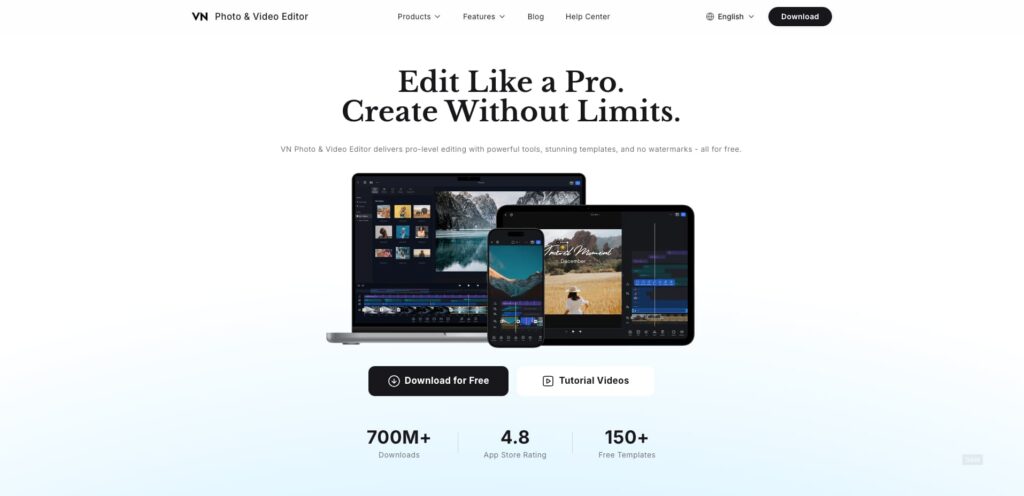
Core Strength: VN Video Editor plays in the same lane as CapCut. It offers a timeline-based mobile editor with keyframe animation, speed curves, and a genuinely free export with no watermark. Many creators switch to VN specifically to get CapCut-level speed without CapCut’s data and privacy concerns.
Pricing: VN is free across mobile and desktop, with no forced subscription for its core editing tools. Confirm current app store pricing before publishing, since in-app purchases can shift.
Best Suited For: Short-form creators who want a fast, familiar mobile editor without CapCut’s brand baggage or a Pro paywall blocking basic exports.
Pros and Cons: VN handles keyframes and speed ramping better than most free mobile apps. The interface feels close enough to CapCut that the learning curve stays minimal. It lacks CapCut’s massive built-in template library, and its AI tools stay basic compared to more established competitors.
2. InShot
Core Strength: InShot has been a go-to mobile editor for Instagram and TikTok creators for years. Its strength is a clean, simple interface for trimming, adding music, and layering text without a steep learning curve.
Pricing: InShot offers a free version with a watermark and limited features. The Pro subscription removes the watermark and unlocks extra effects, priced around $3.99 a month or as a lifetime purchase. Confirm current pricing in the app store before publishing.
Best Suited For: Casual creators and small business owners posting short clips who want something simpler than CapCut’s growing feature set.
Pros and Cons: InShot is easy to pick up in minutes and exports quickly. Its music and sticker library covers most social content needs. It falls behind CapCut and VN on advanced features like auto captions and AI-powered editing tools.
3. Clipchamp
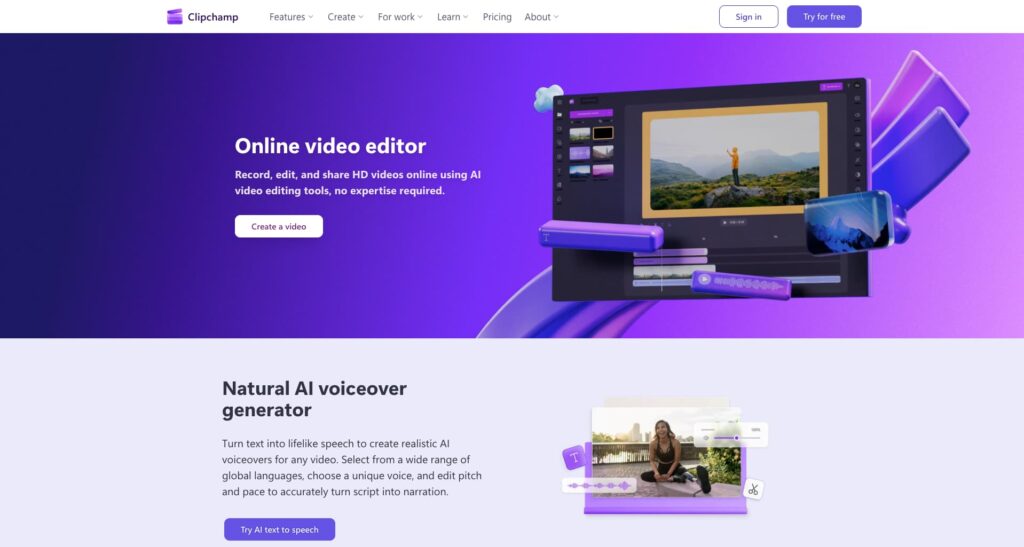
Core Strength: Clipchamp is Microsoft’s built-in video editor, bundled directly into Windows 11. Its core strength is accessibility. No download is required for most Windows users, and the browser-based version works on any device.
Pricing: Clipchamp offers a solid free tier. The Premium plan adds stock footage, more export options, and premium templates, priced around $11.99 a month. Confirm current pricing on Microsoft’s site before publishing.
Best Suited For: Windows users, students, and small teams who want a free, no-install editor for straightforward social and marketing videos.
Pros and Cons: Clipchamp’s Windows integration and browser access make it extremely convenient, and its free tier is genuinely usable. It cannot match CapCut’s mobile experience or its library of trending templates and effects.
4. Kapwing
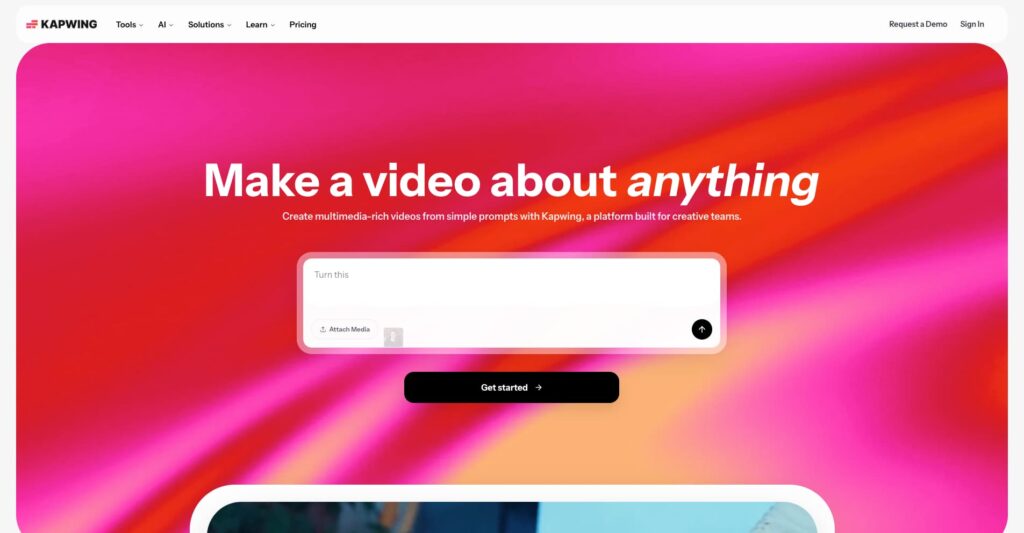
Core Strength: Kapwing runs entirely in the browser, which makes it useful for teams that need to edit and review video without installing anything. It handles subtitles, trimming, and resizing well, and multiple people can collaborate on a project at once.
Pricing: Kapwing offers a free plan with export limits and a watermark. Paid plans start around $16 a month for higher resolution exports and no watermark. Confirm current pricing on Kapwing’s site before publishing.
Best Suited For: Marketing teams and social media managers who need multiple people reviewing or editing the same project without passing files back and forth.
Pros and Cons: Kapwing’s browser-based collaboration is a real advantage over CapCut for teams, and automatic subtitle generation works well for accessibility and social captions. Performance can lag on longer or higher resolution projects compared to a native desktop app.
5. Canva

Core Strength: Canva’s video editor sits inside the same platform used for graphic design and presentations. Its strength is convenience for creators who already need social graphics, thumbnails, and video from one dashboard.
Pricing: Canva Pro starts around $12 a month for a single user. Confirm current pricing before publishing, since Canva updates its plans regularly.
Best Suited For: Social media managers and small business owners who want simple video editing alongside graphic design in one subscription.
Pros and Cons: Canva’s Magic Resize and template library speed up multi-platform content production, and Brand Kit keeps every asset on brand. Its video editor stays basic compared to CapCut for trimming precision, transitions, and audio control.
6. Adobe Premiere Rush

Core Strength: Premiere Rush is Adobe’s cross-platform answer to mobile-first editing. It syncs projects across phone, tablet, and desktop, and brings a simplified version of Premiere Pro’s color and audio tools to a mobile interface.
Pricing: Premiere Rush offers a limited free plan. Paid access starts around $9.99 a month as a standalone plan, or comes bundled with Creative Cloud All Apps. Confirm current pricing on Adobe’s site before publishing.
Best Suited For: Creators who want to start on their phone and finish on desktop, without learning full Premiere Pro right away.
Pros and Cons: Premiere Rush offers better color grading and audio control than CapCut, plus real cross-device sync. Its template and effects library is far smaller than CapCut’s, and the free tier caps exports.
7. Filmora

Core Strength: Filmora, made by Wondershare, bridges the gap between mobile simplicity and desktop power. It offers a full timeline editor, AI tools for background removal and auto captions, and a large effects library aimed at beginners moving up from mobile apps.
Pricing: Filmora pricing runs about $50 a year for the standard plan, with a perpetual license also available at a higher one-time cost. Confirm current pricing on Wondershare’s site before publishing.
Best Suited For: YouTubers and content creators ready to move from mobile editing to a full desktop timeline without Premiere Pro’s learning curve.
Pros and Cons: Filmora’s interface stays approachable while offering real desktop editing power, and its AI tools rival CapCut’s. Some advanced effects require extra in-app purchases, and exports carry a watermark until a plan is purchased.
8. LumaFusion

Core Strength: LumaFusion brings professional-grade multi-track editing to iPad and iPhone. It supports up to six video and audio tracks, precise color correction, and detailed audio mixing in a touch-first interface.
Pricing: LumaFusion is a one-time purchase, priced around $29.99, with optional add-ons for extra effects and audio tools. Confirm current App Store pricing before publishing.
Best Suited For: iPad and iPhone creators who want real multi-track editing power without switching to a desktop.
Pros and Cons: LumaFusion offers editing depth that CapCut’s mobile app cannot match, especially for audio mixing and color work. It has a steeper learning curve than CapCut, and it lacks CapCut’s built-in template and effects marketplace.
9. DaVinci Resolve

Core Strength: DaVinci Resolve, from Blackmagic Design, is the biggest genuine step up on this list. Its free version includes professional color grading, a full audio mixing suite through Fairlight, and Hollywood-level editing tools.
Pricing: DaVinci Resolve is free for the vast majority of its features. The paid Studio version adds extra effects and collaboration tools for a one-time cost of about $295. Confirm current pricing on Blackmagic’s site before publishing.
Best Suited For: YouTubers, filmmakers, and editors ready to leave template-based editing behind for real color grading and audio control.
Pros and Cons: DaVinci Resolve offers professional tools that CapCut cannot approach, all for free in most cases. The learning curve is steep for anyone coming straight from CapCut or a mobile app, and it needs a fairly capable computer to run smoothly.
10. Adobe Premiere Pro

Core Strength: Premiere Pro remains the industry standard for professional video editing. Multi-camera editing, advanced color grading through Lumetri Color, and deep integration with After Effects make it the tool most production studios build their workflow around.
Pricing: Premiere Pro starts around $22.99 a month as a single-app plan, or comes bundled with the full Creative Cloud suite. Confirm current pricing on Adobe’s site before publishing.
Best Suited For: Agencies, filmmakers, and creators producing long-form or client-facing video who need frame-accurate, professional-grade output.
Pros and Cons: Premiere Pro offers precision and industry-wide compatibility that CapCut was never built for. The subscription cost and learning curve are real barriers for creators only producing quick social clips.
CapCut Alternatives: Pros and Cons at a Glance
Reading all ten breakdowns takes a few minutes. Here is the single biggest reason to pick each tool, and the single biggest reason you might not.
| Tool | Top Pro | Top Con |
| VN Video Editor | Free export, no watermark | Smaller template library than CapCut |
| InShot | Easy to learn in minutes | Missing advanced AI editing features |
| Clipchamp | Built into Windows, no install | Weaker mobile experience |
| Kapwing | Real-time team collaboration | Can lag on longer projects |
| Canva | Video and graphics in one app | Basic trimming and transitions |
| Adobe Premiere Rush | Syncs phone to desktop | Small effects library |
| Filmora | Desktop power, beginner friendly | Extra cost for some effects |
| LumaFusion | True multi track editing on iPad | Steeper learning curve |
| DaVinci Resolve | Pro color grading for free | Steep learning curve |
| Adobe Premiere Pro | Industry standard precision | High cost and learning curve |
How to Choose the Right CapCut Alternative
Start with where you edit most. If your workflow lives on your phone, VN, InShot, or LumaFusion keep that mobile speed while fixing specific CapCut gaps. If you work from a laptop or desktop, Clipchamp, Filmora, DaVinci Resolve, or Premiere Pro make more sense. If you edit as part of a team, Kapwing’s browser-based collaboration is worth a look.
Next, think about what CapCut is missing for you. Creators frustrated by watermarks or paywalls usually do best with VN or DaVinci Resolve, both of which stay free for most core features. Creators who have outgrown CapCut’s editing depth, especially for color grading or audio, should look at DaVinci Resolve or Premiere Pro.
Budget matters too. Free options like VN, Clipchamp, and DaVinci Resolve cost nothing to start. Paid options like Filmora, Premiere Rush, and Premiere Pro charge a subscription or one-time fee, but often unlock features CapCut does not offer at any price.
Conclusion
CapCut earned its popularity with speed and a huge free template library, but it is not the only option for 2026. Some CapCut alternatives keep that same fast, mobile-first feel while fixing specific frustrations like watermarks or privacy concerns.
Others represent a genuine leveling up, bringing real color grading, multi-track timelines, and professional export options CapCut was never built to offer.
The right pick depends on where your content is headed. Casual creators posting quick clips rarely need to leave CapCut’s lane at all. Creators building a serious channel or client business eventually need the depth that DaVinci Resolve or Premiere Pro provide.
Pricing, availability, and specific features across these apps change often. Verify current details on each company’s official site before publishing.