
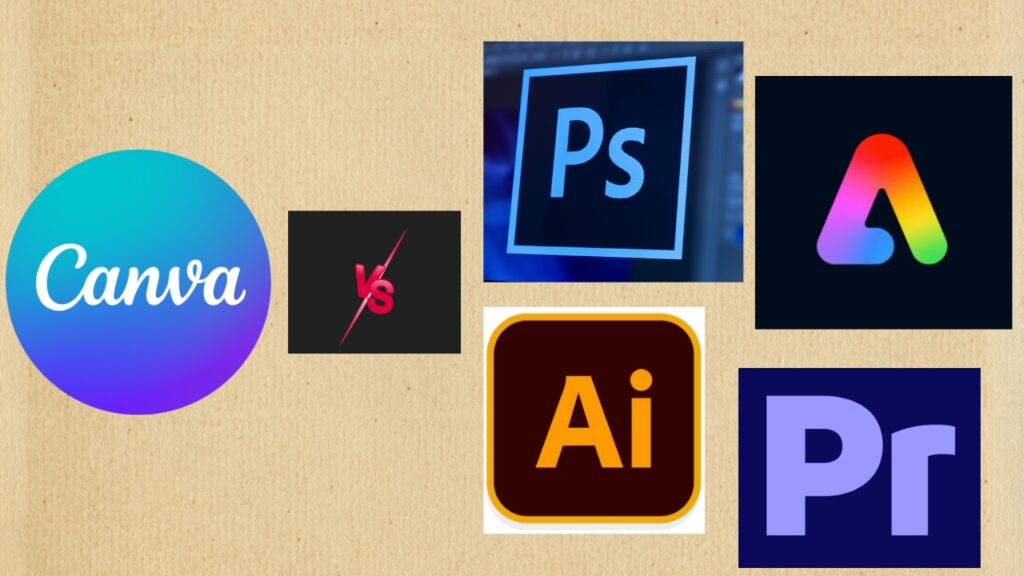
Is a Canva Pro vs Adobe alternatives comparison the smartest way to choose your next design tool in 2026? Most creators ask this the moment their free templates run out, or their export quality stops looking professional. Canva Pro built its name on speed and simplicity.
Anyone can build a polished graphic or short video in minutes. Adobe took a different path. Its lineup, including Photoshop, Illustrator, Premiere Pro, Adobe Express, and Firefly, targets creators who need precision and layered control. Neither approach is wrong. The right pick depends on your budget, your skill level, and what you actually need to produce.
This guide breaks down pricing, editing power, video tools, AI features, and real use cases so you can choose with confidence.
Table of Contents
Canva Pro vs Adobe Alternatives: Quick Verdict
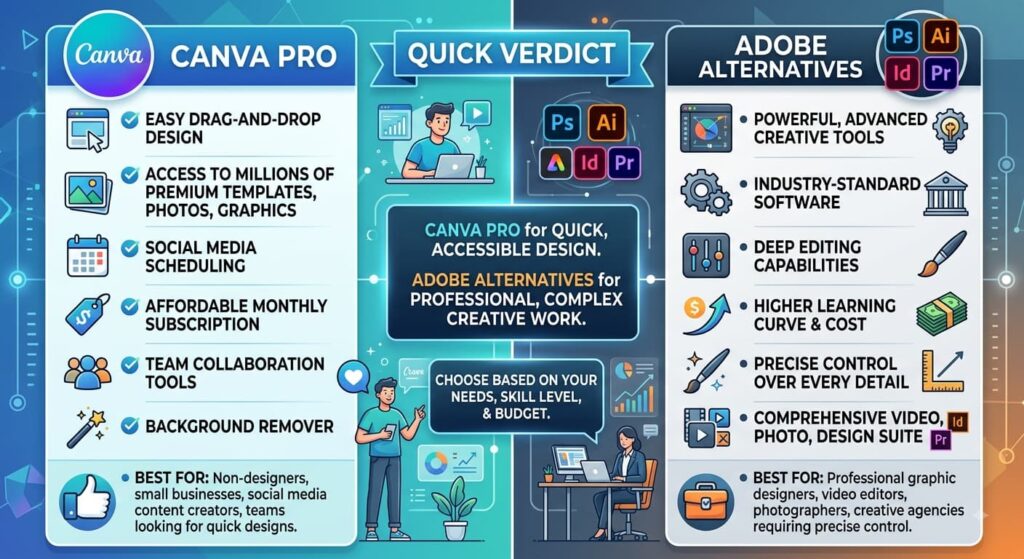
If you need fast, templated content for social media, YouTube thumbnails, presentations, and light video edits, Canva Pro is the better fit. It costs less, has a shorter learning curve, and gets a finished asset out the door in minutes.
If you need frame-accurate video editing, advanced color grading, layered photo compositing, or vector illustration with full control, Adobe’s tools remain the standard. Premiere Pro, Photoshop, and Illustrator give professionals a level of precision Canva Pro cannot match.
Many content creators end up using both. Canva Pro handles quick-turnaround graphics and social posts. Adobe handles the polished, long-form video or detailed design work that needs a professional finish. The choice is not about which tool is objectively better. It is about matching the tool to the task in front of you.
Canva Pro vs Adobe Alternatives: At a Glance
Canva Pro is a browser-based, all-in-one platform built for speed. It covers graphic design, basic video editing, presentations, and social content from one dashboard. Pricing starts around $12 a month for a single user. Confirm current pricing before publishing, since Canva updates its plans often.
Adobe is not one tool. It is a collection of specialized apps under the Creative Cloud umbrella. Photoshop handles photo editing. Illustrator handles vector graphics. Premiere Pro handles professional video editing. Adobe Express is Adobe’s own answer to Canva, built for quick social graphics.
Firefly powers Adobe’s generative AI tools across the suite. Creative Cloud pricing starts near $60 a month for full access to every app, with single-app plans priced lower. Confirm exact figures on Adobe’s site before publishing, since Adobe adjusts pricing throughout the year.
Canva Pro wins on simplicity and speed. Adobe wins on depth and professional-grade output. That split defines almost every comparison in this guide.
Pricing Breakdown: Canva Pro vs Adobe in 2026
Canva Pro pricing is straightforward. A single user pays a monthly or annual fee for access to premium templates, the Magic Studio AI suite, Brand Kit, and expanded cloud storage. Canva for Teams adds shared folders, brand controls, and approval workflows for a small per-user increase. Teams plans usually require at least three seats.
Adobe pricing works differently. You are choosing between individual apps and the full Creative Cloud bundle. A single-app plan, such as Premiere Pro alone or Photoshop alone, costs less than the full suite. The All Apps plan unlocks Photoshop, Illustrator, Premiere Pro, After Effects, Adobe Express Premium, and Firefly generative credits in one subscription. Adobe Express also sells its own standalone premium plan for creators who only want Adobe’s Canva-style tool without the full Creative Cloud commitment.
Both companies discount annual billing compared to paying month to month. That discount can lower the effective monthly cost by a meaningful margin on either platform.
Budget-conscious creators and small teams tend to save money with Canva Pro, especially if their output stays focused on social graphics and simple video. Teams that need Premiere Pro or Photoshop for professional work usually save money with the Creative Cloud All Apps plan instead. Buying several single-app subscriptions separately costs more over time.
Pricing in this space changes often. Confirm the latest figures on Canva’s and Adobe’s official pricing pages before publishing any specific numbers.
Design and Photo Editing Capabilities

Canva Pro for Design and Photo Edits
Canva Pro handles design through a drag-and-drop editor built around templates. Users pick a layout, swap in their own text, images, and brand colors, then export. Photo editing tools include background removal, basic retouching, filters, and simple layering. These tools work well for social posts, thumbnails, flyers, and presentations. Canva Pro does not offer pen-tool precision, advanced masking, or deep pixel-level control. It trades depth for speed.
Adobe Photoshop and Illustrator
Photoshop remains the industry-standard app for photo editing and compositing. Layers, masks, adjustment layers, smart objects, and the pen tool give editors full control over every pixel. Content-aware fill and advanced selection tools handle complex retouching that Canva Pro cannot attempt. Illustrator handles vector graphics with the same precision, supporting logos, icons, and print-ready artwork that scales without any loss in quality.
Both apps have a steeper learning curve than Canva Pro. New users often need real practice time before they feel comfortable. In exchange, they unlock professional-grade output that template-based tools cannot replicate. Video thumbnail creators, brand designers, and print designers who need exact control still reach for Photoshop and Illustrator over Canva Pro.
Video Editing Capabilities
Canva Pro Video Editor
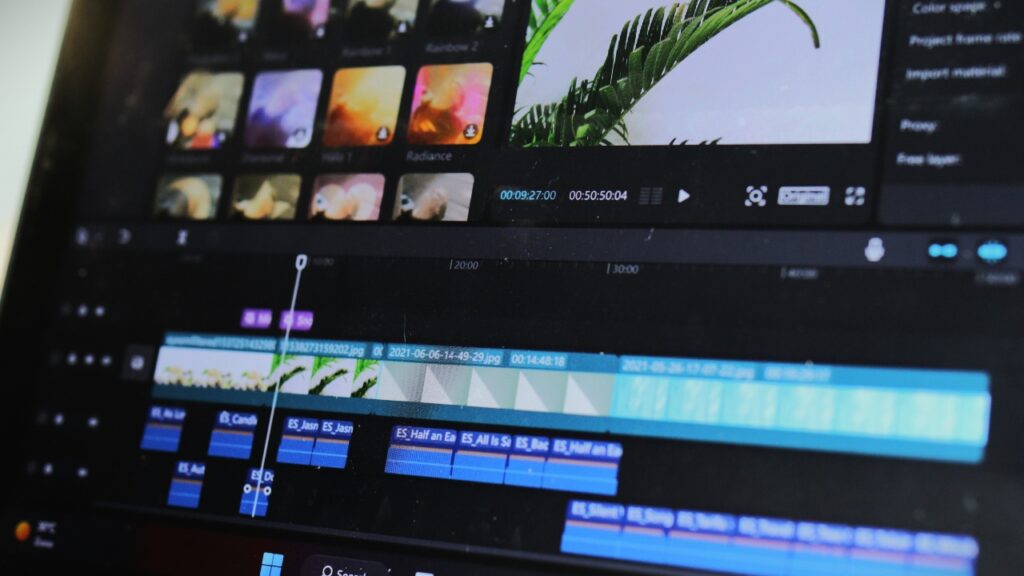
Canva Pro includes a timeline-based video editor built for short-form content. Users can trim clips, add text overlays, drop in stock music, apply transitions, and export vertical video for Instagram Reels, TikTok, and YouTube Shorts. Magic Resize for video reformats a single edit into multiple aspect ratios automatically. This makes Canva Pro a fast option for social media managers who need to publish across platforms without learning a complex editor.
Adobe Premiere Pro
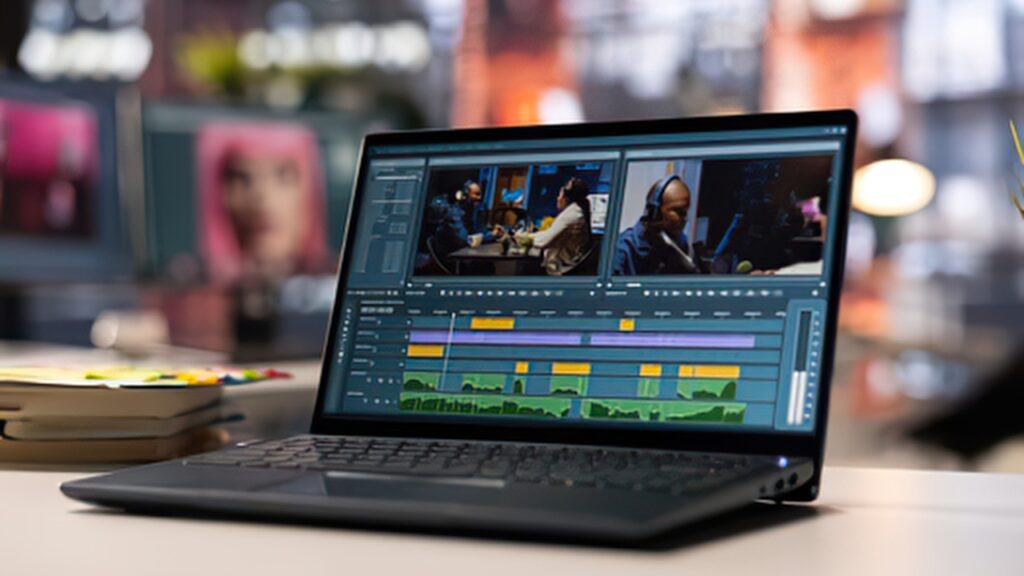
Premiere Pro is a professional non-linear video editor built for creators who need frame-accurate control. It supports multi-camera editing, advanced color grading through Lumetri Color, detailed audio mixing, and export settings built for broadcast, streaming, and cinema delivery. Premiere Pro integrates directly with After Effects for motion graphics and with Adobe Firefly for AI-assisted editing tasks like generative extend.
YouTubers, filmmakers, and agencies producing long-form video content typically outgrow Canva Pro’s video editor. Their projects need more than simple cuts and text overlays.
For creators who only need quick vertical clips with captions and music, Canva Pro’s video editor is often enough. For anyone editing interviews, short films, or multi-camera footage, Premiere Pro is the tool built for that job.
Templates, Speed, and Ease of Use
Canva Pro’s biggest advantage is speed. Its library includes more than a million templates across social media, presentations, video, and print formats. A new user can produce a polished Instagram carousel or YouTube thumbnail within minutes, with no design background required. Magic Resize lets a single design get reformatted across dozens of platform dimensions in seconds.
Adobe does not compete on template volume in the same way. Adobe Express offers its own growing template library, built to compete directly with Canva’s audience. Photoshop, Illustrator, and Premiere Pro are built around custom work rather than templates. New users typically need real practice time, often several weeks, before they feel comfortable with layers, masks, and the timeline editor. That learning curve pays off in flexibility and precision once a creator settles in.
If speed and ease of use matter most, Canva Pro wins clearly. If long-term flexibility and professional output matter more than the learning curve, Adobe’s apps are worth the investment.
AI Features: Magic Studio vs Adobe Firefly

Canva’s Magic Studio bundles AI tools directly into the editor. Magic Write drafts captions and marketing copy. Magic Eraser removes unwanted objects from photos. Background Remover isolates subjects with one click. Magic Resize reformats a design across many dimensions at once. Magic Animate adds motion to static designs for quick video output. These tools are built for speed, letting a non-designer generate a finished asset from a simple prompt.
Adobe Firefly powers generative AI across the Creative Cloud suite. Inside Photoshop, Firefly enables generative fill and generative expand. Editors describe a change in a text prompt, and Firefly blends the result into the photo. Inside Premiere Pro, Firefly assists with tasks like generative extend, which stretches a clip slightly to cover a gap without a reshoot. Adobe promotes Firefly as trained on licensed content, positioning it as a safer option for commercial use.
Both companies update their AI tools often. Confirm current feature sets and usage limits before publishing specific claims, since this area changes faster than almost any other part of either platform.
Collaboration and Team Workflows
Canva for Teams focuses on brand consistency and approval workflows. Shared folders, a centralized Brand Kit, and comment-based review make it easy for a marketing team to stay on brand, even when non-designers create most of the content. Multiple team members can edit the same design and leave feedback directly on the canvas.
Adobe’s collaboration tools depend on the app. Creative Cloud Libraries sync brand colors, fonts, and assets across Photoshop, Illustrator, and Premiere Pro. Frame.io, owned by Adobe, adds structured video review with time-stamped comments, version comparison, and approval stages built for video production teams. This makes Adobe a stronger fit for teams running a formal video review process with multiple stakeholders.
Marketing teams producing high volumes of simple graphics tend to prefer Canva’s lightweight workflow. Production teams managing complex video projects with client review cycles tend to prefer Adobe’s Frame.io integration.
Workflow Speed Benchmarks: Canva Pro vs Adobe
The table below shows typical completion times for common tasks on each platform. These are reasoned estimates based on how each tool works, not results from controlled testing. Time the tasks yourself before publishing exact numbers.
| Task | Canva Pro | Adobe | Winner |
| Social post from scratch | 5 min | Illustrator, 18 min | Canva Pro, 3x faster |
| Social post from template | 90 sec | Adobe Express, 4 min | Canva Pro |
| Remove photo background | 5 sec, one click | Photoshop, 30 sec | Canva Pro |
| Composite a product photo | Basic layering only | Photoshop, 10 min, full control | Photoshop |
| Design a vector logo | Quick draft only | Illustrator, 45 min, full precision | Illustrator |
| Caption a vertical video | 5 min | Premiere Pro, 15 min | Canva Pro |
| Edit multi-camera video | Not supported | Premiere Pro, several hours | Premiere Pro |
| Resize for 5 platforms | 30 sec, Magic Resize | Manual, 15 to 20 min | Canva Pro, far faster |
| Build a 10-slide deck | 15 min | Express templates, 25 min | Canva Pro |
| Brand guidelines document | 30 min, template | From scratch, 2 hours | Canva Pro |
The pattern holds throughout. Canva Pro wins on anything template-driven or quick-turnaround. Adobe wins on tasks that need frame-level or pixel-level control, especially multi-camera editing and vector illustration.
Real World Use Cases: When to Choose Which Tool
Use Case 1: Social Media Manager (Choose Canva Pro)
A social media manager producing daily posts across Instagram, TikTok, and LinkedIn needs speed above everything else. Canva Pro’s templates, Magic Resize, and Magic Studio AI tools let one person handle content for multiple platforms without a design background. Adobe’s learning curve would slow this workflow down without adding value the role actually needs.
Use Case 2: YouTube Creator Editing Long-Form Video (Choose Adobe)
A YouTuber publishing videos in the 15 to 20 minute range needs multi-camera editing, color correction, and detailed audio control. Premiere Pro handles this level of production far better than Canva Pro’s simplified video editor. Pairing Premiere Pro with After Effects covers motion graphics and animated intros as the channel grows.
Use Case 3: Small Business Owner (Choose Canva Pro)
A small business owner handling their own marketing needs: flyers, social posts, and a simple product catalog. They have no design training and a limited budget. Canva Pro’s templates and Brand Kit let them produce professional-looking materials without hiring a designer or learning Photoshop.
Use Case 4: Video Production Agency (Choose Both)
A video production agency shooting client work needs Premiere Pro and After Effects for the actual deliverables, plus Photoshop for thumbnail design. The same agency often keeps a Canva Pro subscription for quick social promos and pitch deck graphics that do not need the full Adobe workflow. Running both tools covers every part of the agency’s output without forcing one platform to do a job it was not built for.
Canva Pro vs Adobe: Pros and Cons
Canva Pro Pros
Canva Pro is fast to learn and easy to use from day one. It includes a massive template library across social media, presentations, and print. Magic Studio AI tools speed up everyday tasks like background removal and resizing. Pricing is affordable for individuals and small teams. Brand Kit keeps a team’s content consistent without much oversight. Cloud-based access works from any browser with no installation required.
Canva Pro Cons
Canva Pro’s design tools stay basic compared to Photoshop and Illustrator. Its video editor cannot handle multi-camera projects, advanced color grading, or complex audio work. There is no full-precision vector pen tool. Heavy reliance on templates can lead to generic-looking output if a brand does not customize enough.
Adobe Pros
Adobe’s apps remain the professional standard for photo editing, illustration, and video production. Premiere Pro and Photoshop offer pixel-level and frame-accurate control. Firefly’s generative AI tools sit inside professional workflows like Photoshop and Premiere Pro rather than existing as a separate product. Frame.io adds structured review for video teams. The tools scale from freelance work up to full studio production pipelines.
Adobe Cons
Adobe’s learning curve is steep for beginners. Full Creative Cloud access costs more than Canva Pro, especially for teams that only need basic design work. Adobe Express, while improving, still trails Canva’s template library in volume. Managing several apps at once can feel fragmented compared to Canva’s single dashboard.
Who Should Use Canva Pro vs Adobe Alternatives
Choose Canva Pro if you are a social media manager, small business owner, content creator handling short-form video, or anyone who needs polished output fast without a design background. It also fits teams that value one simple dashboard over managing several specialized apps.
Choose Adobe if you are a video editor, photographer, illustrator, or agency delivering professional-grade work to clients. Premiere Pro, Photoshop, and Illustrator remain the expected standard across most professional creative pipelines. Many job postings in video production and design still list Adobe skills as a requirement.
Many creators eventually use both. Canva Pro covers fast-turnaround content. Adobe covers the polished, high-stakes deliverables that need professional precision.
Conclusion
Canva Pro and Adobe are not really competing for the same customer. Canva Pro wins on speed, price, and accessibility for everyday content. Adobe wins on depth, precision, and professional-grade output for photo, video, and illustration work. The right choice depends on what you are producing and how much control you need over the final result.
If your work centers on social posts, presentations, and short-form video, start with Canva Pro. If your work requires professional video editing, detailed photo compositing, or print-ready illustration, invest the time in learning Adobe’s tools. Many creators end up paying for both, using each one for the job it does best.
Pricing and feature details in this space change often. Verify current numbers on Canva’s and Adobe’s official pricing pages before publishing.