
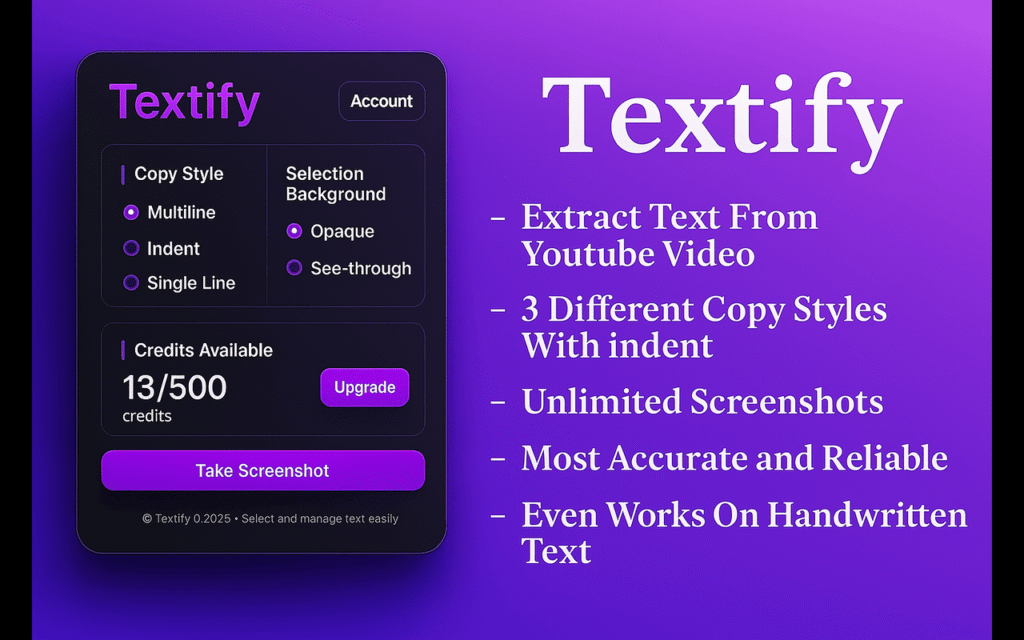
Can I use Textify to extract text from video? Yes, in general, tools built for this job pull visible on-screen text from video frames using optical character recognition, often shortened to OCR.
This guide looks at what extracting text from video actually involves, how a tool like Textify would approach the job, and what to expect in terms of accuracy and setup. It also covers the difference between reading on-screen text and transcribing spoken audio, since the two get mixed up often.
Specific features, pricing, and interface details for Textify can change quickly in this space. Confirm the current feature list on the official Textify site before you build a workflow around it.
Table of Contents
Can I Use Textify to Extract Text From Video? A Quick Overview
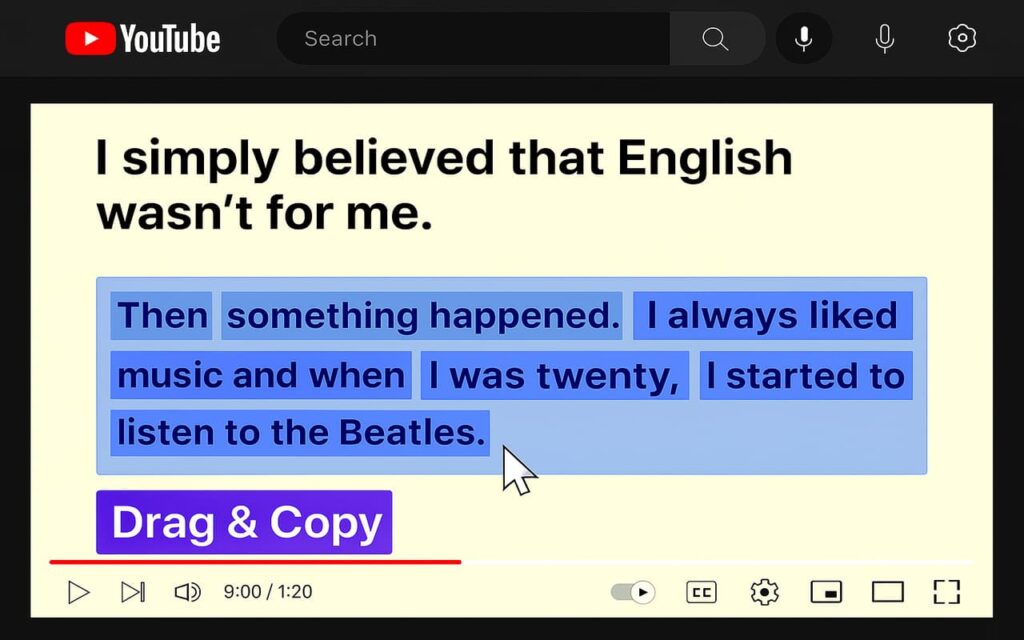
Tools like Textify fall into a category built around one core idea. They scan video frames and pull out visible text using OCR. That includes captions, on-screen labels, slide text, and any graphic overlay that contains readable characters.
This is different from a traditional video editor. You are not cutting clips or adding effects. You are asking software to read your footage the same way it might read a scanned document.
Tools in this category work best on clear, high-contrast text. Small fonts, busy backgrounds, and fast-moving graphics can reduce accuracy. That holds across most OCR-based tools, not just one specific app.
How Textify Fits Into the Video Content Workflow
Text extraction is usually one step in a larger process, not the whole job. You pull the text, then use it somewhere else, in a blog post, a caption library, or a searchable archive. Treat it as a support tool that feeds your other work.
On-Screen Text vs Spoken Audio: Two Different Jobs
Extracting text from video can mean two different things. The first is reading visible text that appears on screen, like captions, labels, or slide content. The second is transcribing what people say out loud.
An OCR-based tool like Textify targets the first type, reading visible on-screen text. If your goal is a written transcript of spoken dialogue, you want a dedicated transcription tool instead.
Knowing which job you actually need saves time. A transcription tool will not read text baked into a video frame. An OCR tool will not transcribe spoken dialogue on its own.
Who Text Extraction From Video Is Useful For
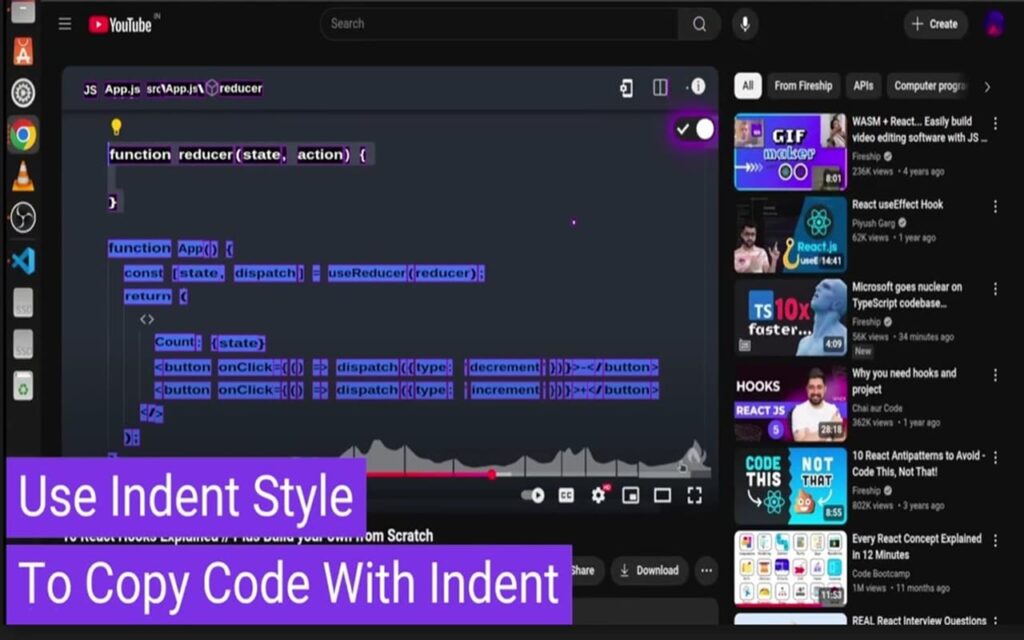
This kind of tool fits specific workflows well. Content teams repurposing webinars, researchers archiving broadcast data, and social teams pulling quotes from video all benefit from software that reads on-screen text automatically.
It fits less well for teams that mainly need spoken word transcripts, or for footage with little to no visible text. In those cases, a transcription tool or manual review will serve you better.
How Text Extraction From Video Typically Works
Most OCR-based video tools follow a similar process. The software breaks a video into individual frames. Each frame gets scanned for text patterns. Matches get converted into editable characters and compiled into a list or document.
Some tools only scan at set intervals, like one frame per second, instead of every single frame. This keeps processing fast but can miss text that appears and disappears quickly.
Key Takeaway: The more frames a tool scans, the more accurate the result tends to be, but processing time goes up too. Most tools balance speed against thoroughness by default.
Getting Started With Textify
Start with a clean source file. Higher resolution footage gives OCR software more detail to work with, which usually means better results.
Upload your video, then let the tool process each frame. Processing time depends on video length and resolution. Longer or higher resolution files take more time to scan.
Once processing finishes, review the extracted text against the original footage. OCR tools can misread characters, especially with stylized fonts or low-contrast backgrounds.
Pro Tip: Compare extracted text against a few sample frames before trusting the full output. This catches obvious OCR errors early.
What Kind of Text You Can Expect to Pull From Video
Text extraction tools generally do well with:
- Burned-in captions and subtitles
- Slide text from presentations or webinars
- Product labels and on-screen graphics
- Lower-third names and titles
- Signage that stays on screen long enough to read
They tend to struggle with handwriting, heavily stylized fonts, and text that moves quickly across the frame.
Accuracy and Common Limitations
OCR accuracy depends on video quality, font style, and how long text stays visible. Clear, high-contrast text against a plain background gives the best results. Small or low-resolution text is harder to read correctly.
Motion is another factor. Text that scrolls or fades quickly gives the software less time to capture a clean frame. Expect more errors in fast-paced content compared to a static slide or title card.
No OCR tool gets everything right. Budget time to review and correct the output, especially for anything you plan to publish or rely on for accuracy.
Language and Script Support
OCR accuracy varies by language and script. If your footage includes non-English text, confirm Textify’s language support directly, since coverage differs widely between tools.
Common Use Cases for Extracted Video Text
- Repurposing webinar slides into a written recap
- Pulling quotes from video testimonials for social posts
- Archiving on-screen data from recorded broadcasts
- Building searchable records of screen recordings
- Supporting accessibility efforts alongside captions
Textify Compared to Other Text Extraction Options
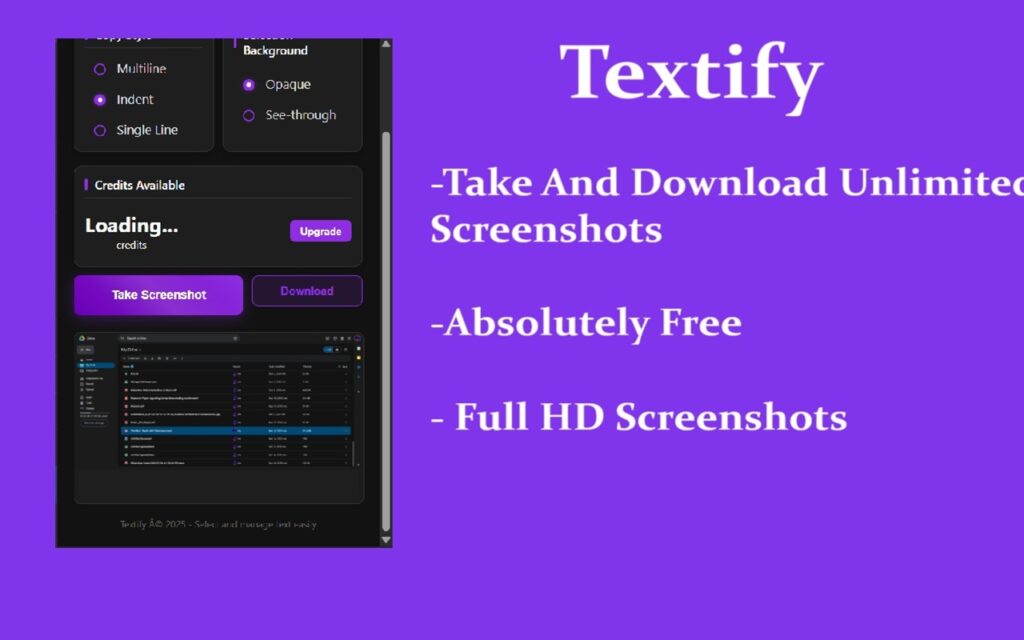
Textify is not the only option in this space. General OCR tools, some video editing platforms, and dedicated transcription services all touch different parts of the same problem.
If your main need is spoken word transcription rather than on-screen text, a dedicated transcription tool will likely serve you better. If you need both spoken and on-screen text pulled from the same footage, you may need to pair two tools together.
Compare a few options against your specific footage before settling on one workflow. Accuracy can vary a lot depending on your source material.
Exporting and Using Your Extracted Text
Most extraction tools let you export results as a plain text file or a spreadsheet, especially if the text includes timestamps. Check what export formats Textify supports before building a workflow around it, since this affects how easily the text moves into your other tools.
Common Mistakes to Avoid
Skipping a Quality Check
OCR output can look complete while still containing small errors. Always proofread before publishing or sharing extracted text.
Using Low-Quality Source Video
Compressed or blurry footage makes text harder to read accurately, even for strong OCR tools. Start with the highest resolution version of your footage that you have available.
Expecting Spoken Dialogue in the Output
OCR reads what is visible on screen, not what is said out loud. Confirm which type of extraction you actually need before you start a project.
Conclusion
Can I use Textify to extract text from video? Yes, if the tool is built around OCR-based frame scanning, which is how this category of software generally works. It can pull captions, labels, and on-screen graphics into editable text.
Results depend on video quality and how the text appears on screen. Clean, high-contrast footage will always perform better than busy or low-resolution clips.
Before you build a workflow around Textify, confirm its current features and pricing on the official site. This space moves fast, and the details are worth checking before you rely on it for real projects.